Starting a project shouldn’t feel like admin
Every new job begins the same way. Make a folder. Make the same subfolders inside it. Name everything the same way you did last time, and try to remember what you called it. Then, somewhere in the middle of it, start doing the actual work. It’s dull, it’s repetitive and it’s exactly the kind of thing a computer should be doing for you.
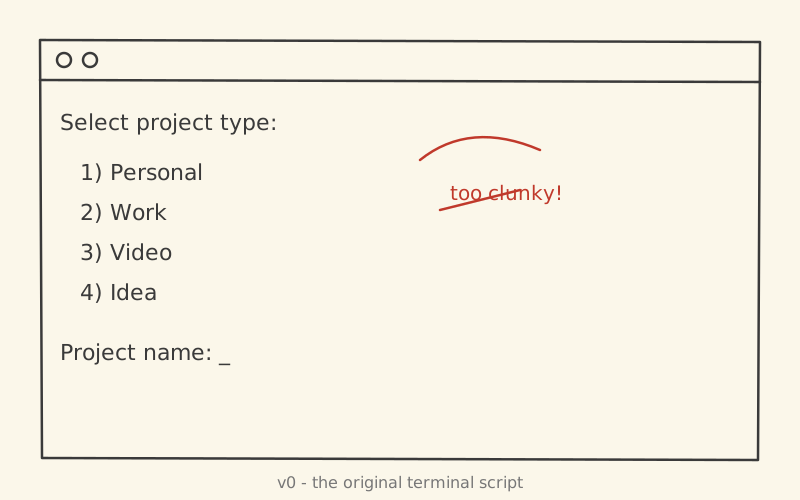
I’d already automated it once, with a Python script triggered by Caps Lock + D. It worked, but it lived in a terminal window, and I had to run it every time. So I rebuilt it as a proper desktop app.
One keystroke, one structure
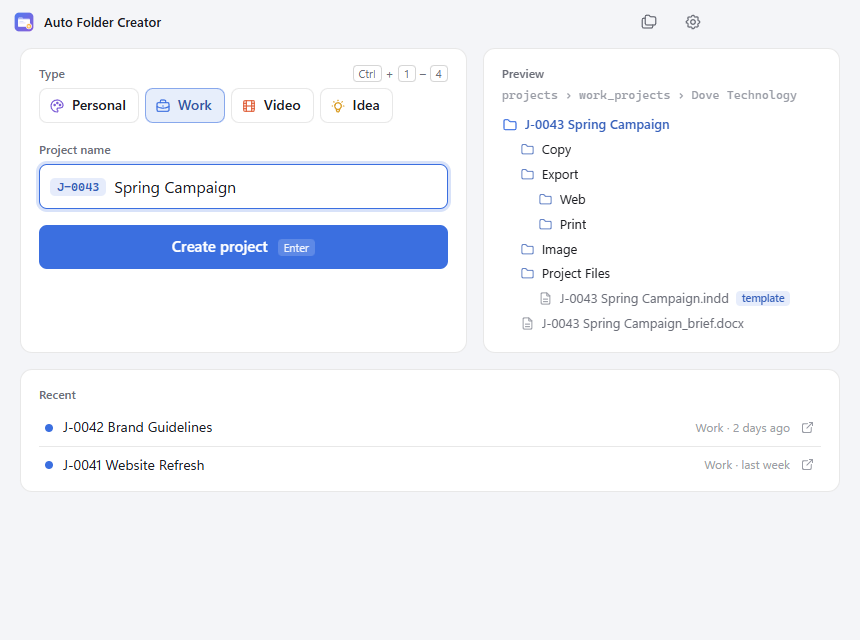
Pick a project type, type a name, hit Enter. The folders, a Word brief and any template files appear, named properly, with a job number on the front. Before anything is created, a live preview shows exactly what’s about to be made, so there are no surprises on disk.
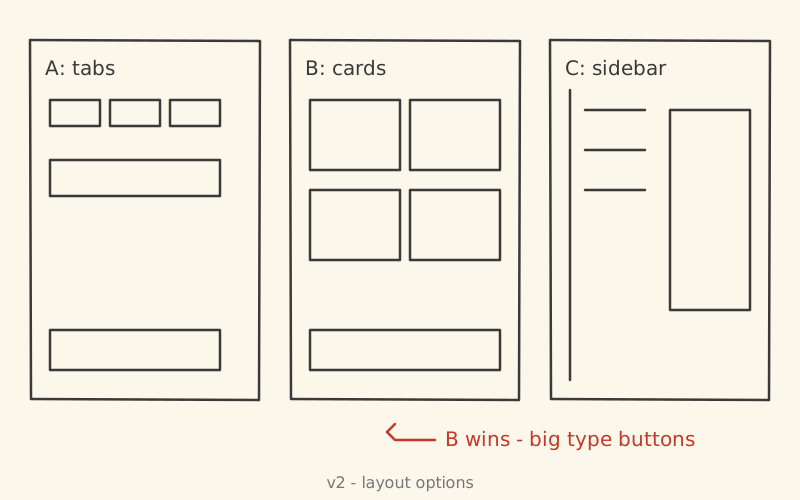
Design: a clean, keyboard-first window with big type buttons and the folder tree previewed beside them.
Coding: built with Electron and Node.js.
The rules it plays by
- Job numbers like
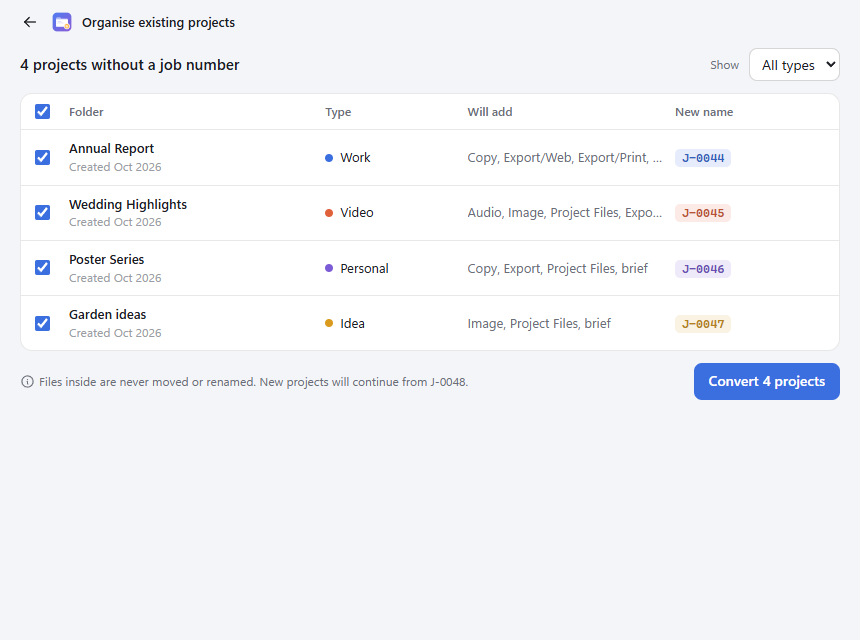
J-0043 Spring Campaign, from one shared counter. Each project type can switch numbering off. - Your files stay where they are. The “Organise existing” tool numbers old project folders (oldest first), fills in missing subfolders and adds a brief. It never moves what’s already inside, and there’s an undo button for the nervous.
- Templates get renamed to match the project, so a template file becomes
J-0043 Spring Campaign.inddwithout you touching it. - Nested subfolders:
Export/WebcreatesWebinsideExport. - Keyboard first:
Ctrl+1toCtrl+4picks a type,Entercreates,Escgoes back. A recent projects list and a duplicate warning keep you honest.
From terminal to app
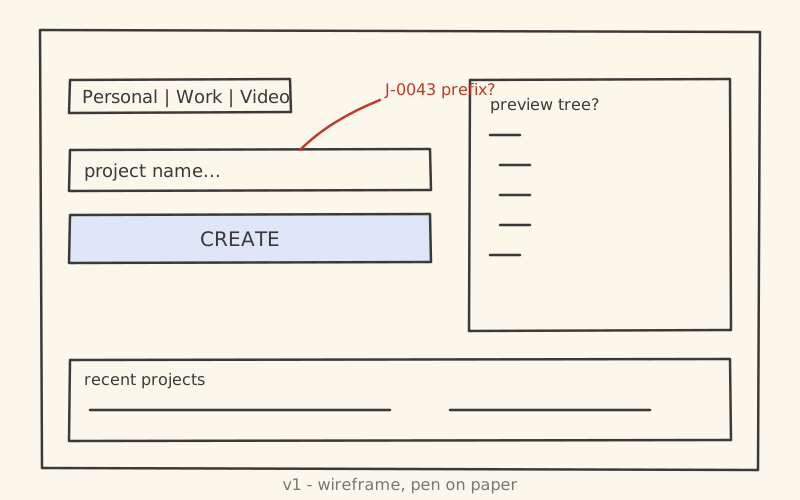
Concept sketches showing how the idea grew from a terminal prompt into a windowed app.
It’s a small tool, but it’s the sort of small tool that quietly saves a few minutes, dozens of times a month, forever.
Built with: Electron, Node.js, HTML/CSS.