Folders breed when you’re not looking
Nobody sets out to have a “New folder (3)”. It just happens. You create one, forget why, create another, and a few months later your drive looks like a teenager’s bedroom. Meanwhile the Downloads folder quietly turns into a landfill of invoices, installers and screenshots.
Folder Tidy is a Windows app I built to deal with both, in a way that I can trust. It follows the same @ folder system I use in Proton Drive, and it never does anything I can’t undo.
Four jobs
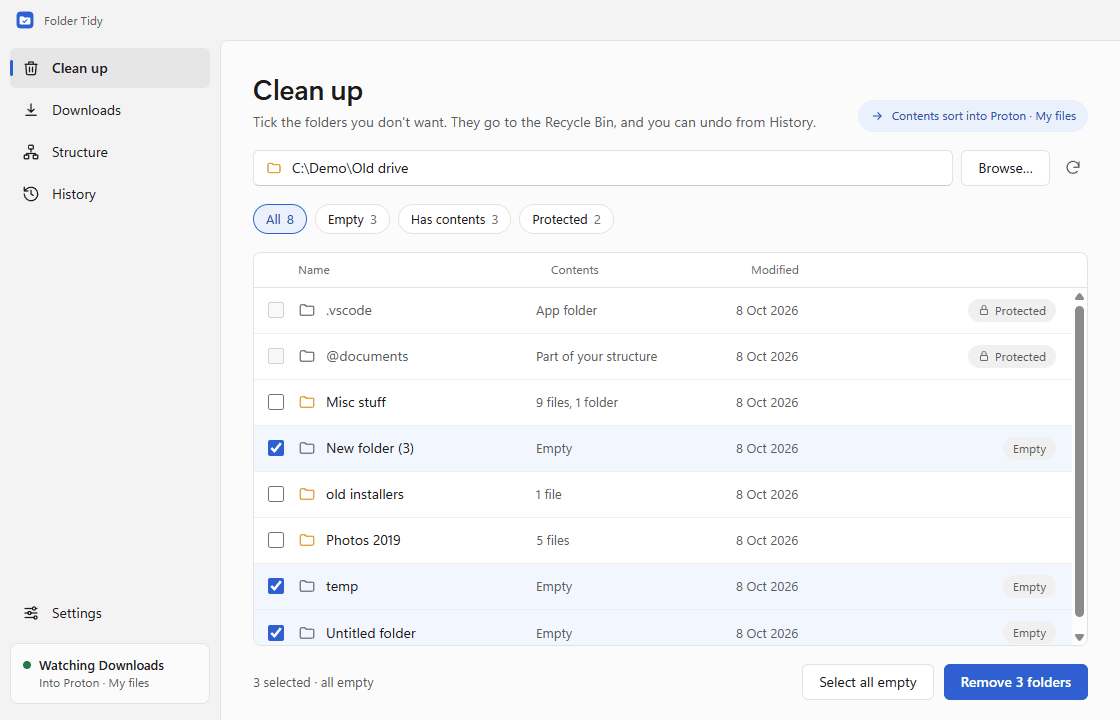
- Clean up. Pick a folder and tick the ones you don’t want. Empty folders come pre-ticked. If a folder has things in it, the app asks where they should go: sort them by type into your folders, choose a destination for each item, or skip it. Anything removed goes to the Recycle Bin.
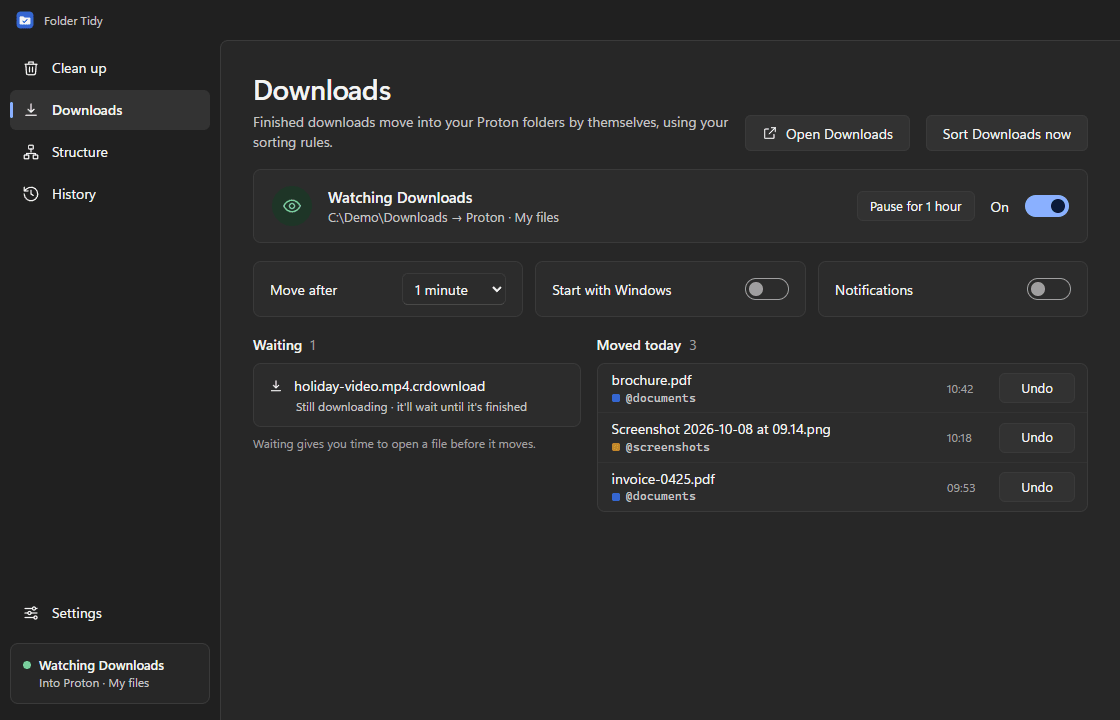
- Downloads. It watches your Downloads folder and moves finished downloads into the right place after a short delay (five minutes by default), so you’ve got time to open a file before it vanishes. Half-finished downloads are left alone, and so is anything already in the folder when you switch watching on. It lives in the system tray and can start with Windows.
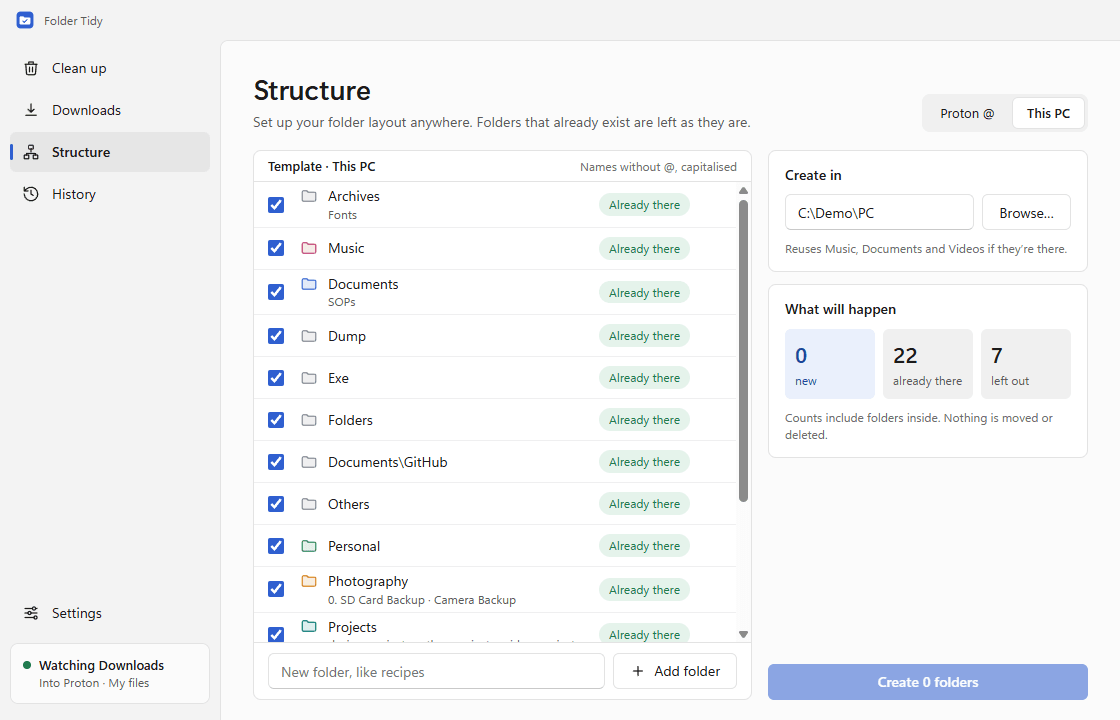
- Structure. It sets up your folder layout anywhere you like. The Proton profile uses the
@names (@archives,@documents, and so on). The This PC profile uses plain, capitalised names and reuses Windows’ own Music, Documents and Videos folders. Folders that already exist are left alone. - History. Every move, removal and new folder can be undone, and redone, for 30 days.
It’s careful
Tools that move your files around make me nervous, so the safety rules are the main feature:
- Protected folders are never touched. Your
@folders, anything starting with a dot, Windows folders, AppData, OneDrive and Proton Drive are never flagged, removed or sorted into. - Nothing is deleted outright. Removed folders go to the Recycle Bin.
- Name clashes keep both. If a name is already taken, you get
invoice (2).pdf, not an overwrite. - It shows you first. The Structure page says how many folders are new and how many already exist before it creates anything.
Sorting rules
Rules are checked from the top, and the first match wins. Screenshots go to @screenshots, images to a dump folder by year, documents to @documents, and the rest to video, audio, installers or archives. Anything it doesn’t recognise lands in @others. You can edit all of it in Settings.
Design: the interface, the logo and light and dark themes.
Coding: built with Electron and Node.js, with automated tests for the file operations.